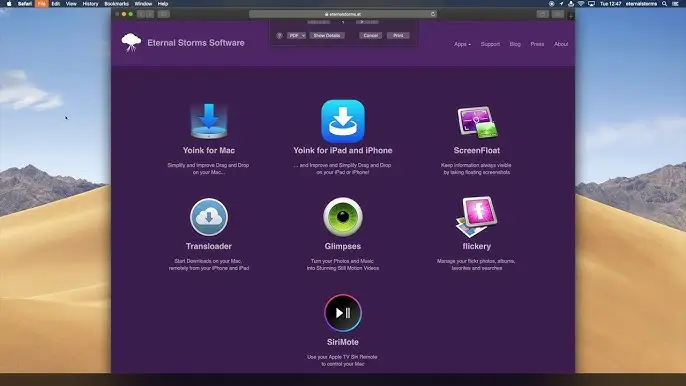
Yoink Overview
Yoink for Mac is a drag-and-drop utility that gives your files a temporary "shelf" so you never have to fight with cluttered windows again. Drag a file toward the edge of your screen and Yoink catches it, freeing your mouse to navigate to the actual destination before you drop it in. Built by Eternal Storms Software, it works with Finder files, app content like text and images, and even clipboard history. The current release, version 3.7.6, is a universal build for Apple Silicon and Intel Macs.
Why Choose Yoink
Dragging a file across Spaces or into a full-screen app on a Mac has always been fiddly, since you have to hold the mouse button the entire time while hunting for the right window. Yoink solves this with a simple idea: drop the file on its shelf first, then navigate freely before finishing the drag. It's a small interaction change that saves real friction, especially for anyone juggling multiple monitors or fullscreen apps throughout the day.
What sets Yoink apart on Mac specifically is how deeply it ties into macOS itself, rather than acting as a bolt-on tool. It runs natively on Apple Silicon without any performance compromise, integrates with Continuity Camera and Handoff for moving files between your iPhone, iPad, and Mac, and even respects Stage Manager and multi-display setups. Recent updates also patched compatibility with newer browsers like Vivaldi and the Dia browser, something most competing drag-and-drop tools haven't caught up on yet.
Key Features
- A shelf window that appears at the screen edge whenever you start a drag
- Works with Finder files and app content, including text snippets and images
- Multiple dragged files automatically condense into a single Stack
- Clipboard History stores recently copied items for reuse later
- Handoff support to move files between your Mac, iPad, and iPhone
- Continuity Camera lets you send photos straight from iPhone to Yoink
- Customizable trigger location, from screen edge to mouse cursor
- System Services, Quick Action, and Share extension integration
- Ignore list to keep Yoink from appearing in apps where you don't need it
- Shortcuts app integration for building custom automation workflows
What's New in 3.7.6 Version
Version 3.7.6 is a smaller maintenance release focused on stability and file-handling accuracy rather than new features.
- Improved subtitled menu items, including the Clipboard History menu, on macOS 14.4 and later
- Better file naming for items dragged directly from web browsers
- Improved compatibility with the Dia browser and Vivaldi
- More reliable drag performance when pulling files out of Yoink
- Larger QuickLook panel sizing for log files like .crash, .log, and .ips
- Fixed a rare bug where two Yoink windows could appear at once
- Fixed an "Open With" menu issue affecting some language translations
Supported macOS Versions
Yoink runs on macOS 10.13 High Sierra and later, and ships as a universal binary with full native support for both Apple Silicon and Intel Macs, so there's no performance gap between chip types. Newer macOS releases unlock a few extra touches, like Quick Action and Continuity Camera integration, which require macOS Mojave 10.14 or later to function. If you're on macOS 26 Tahoe, recent versions already address menu icon rendering and window corner radius quirks specific to that release, so you won't run into visual glitches. Because Yoink is a lightweight menu bar utility rather than a resource-heavy app, it runs comfortably on both older Intel hardware and the latest M-series Macs without needing extra RAM or storage headroom.
How to Install Yoink on macOS?
Getting Yoink set up on your Mac only takes a couple of minutes.
- Click the download button on this page to get the latest Mac build.
- Open the downloaded file and drag the Yoink icon into your Applications folder.
- Launch Yoink from Applications or Spotlight search.
- Grant any permission prompts macOS shows for accessibility or file access.
- Yoink's icon will appear in your menu bar once setup finishes.
- Start dragging a file to see Yoink's shelf appear automatically.
- You're ready to start dragging and dropping with less hassle.
How to Use Yoink Mac?
- Once Yoink is running, the everyday workflow takes just a few seconds to learn.
- Start dragging a file in Finder or content from an app like a browser or word processor.
- Yoink's shelf fades in at the edge of your screen automatically.
- Drop the file onto the shelf to release your mouse button.
- Navigate to the destination folder, app, or window at your own pace.
- Drag the file out of Yoink's shelf and drop it where it belongs.
- Hold Option to force-copy, or Command to force-move, just like in Finder.
Final Verdict
Yoink for Mac is a small utility that solves a genuinely annoying problem, and it does so without getting in your way once it's set up. It's best suited to anyone who regularly moves files between windows, Spaces, or fullscreen apps and wants that friction gone for good. The one-time price, deep macOS integration, and steady stream of compatibility fixes make it an easy recommendation for a smoother daily workflow on Mac.
Download
Download Yoink for Mac
Ready to make drag and drop effortless on your Mac? Grab the latest build right here and get set up in just a couple of minutes.